Remember that frustrating moment when you tap an app, and your phone just sits there, frozen? It’s incredibly annoying. A slow phone significantly impacts daily life, hindering productivity and enjoyment. This guide will help you understand why your phone is slow and provide practical solutions to fix it. You’ll learn to troubleshoot common problems, optimize your device, and enjoy a much more responsive phone experience.
Identifying the Culprits: Why My Phone Is Slow
This section explores the common causes of phone slowdowns, helping you pinpoint the problem areas in your device. We will cover software issues, storage problems, and hardware limitations that may be contributing to your phone’s sluggish performance.
Overloaded Apps and Processes
Multiple apps running simultaneously consume significant resources, leading to slowdowns. Background processes, such as automatic updates or location services, also contribute to the problem. Closing unused apps can release resources and speed things up.
- Force-stopping apps: Force-stopping an app will close it completely, including background processes. This is more effective than simply minimizing the app.
- Managing app permissions: Review the permissions granted to your apps. Many apps request permissions they don’t strictly need, consuming resources unnecessarily. Limiting permissions can help.
- Disabling auto-updates: Auto-updates are convenient but can burden resources during downloads and installations. Scheduling updates for off-peak times or manually installing them can help.
Insufficient Storage Space
Limited storage space hampers your phone’s ability to perform efficiently. As storage fills up, the system slows down. Deleting unnecessary files, apps, and photos creates space and improves performance.
- Removing unused apps: Uninstalling apps you no longer use frees up significant storage space. Review your app list regularly.
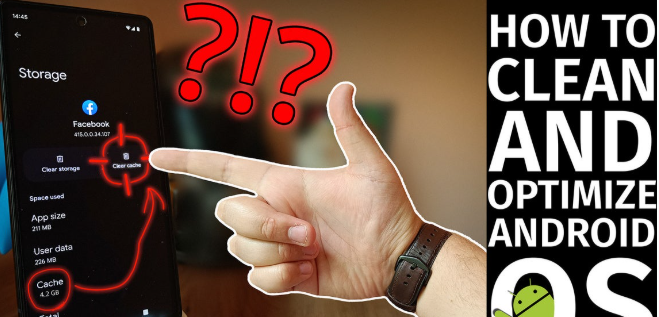
- Clearing cache and data: Apps store temporary files (cache) that can consume space. Clearing cache data will only delete temporary data while clearing app data will remove all app data, requiring you to re-login and set up preferences again.
- Transferring photos and videos: High-resolution photos and videos consume a lot of space. Transferring them to a cloud storage service or external drive can greatly improve phone performance.
Outdated Operating System
An outdated operating system (OS) lacks performance enhancements and security updates included in newer versions. Updating to the latest OS version often boosts phone speed and stability, fixing bugs that may be contributing to the slow performance.
- Checking for updates: Regularly check for OS updates in your phone’s settings. These updates often include performance improvements.
- Backing up your data: Before updating your OS, always back up your data to avoid losing important information. Cloud storage, external drives, or computer backups work well.
- Understanding update size: OS updates can be large, and downloading them on slower connections can impact usage during the process. Ensuring a stable internet connection before starting the update is important.
Fixing the Problem: How to Speed Up Your Phone
This section provides practical steps to resolve common causes of phone slowdowns. We will look at ways to optimize your phone’s software and storage, leading to a significant improvement in its overall performance.
Restarting Your Phone
A simple restart often resolves minor software glitches, freeing up RAM and clearing temporary files that might be slowing down your device. It’s a quick and effective troubleshooting step.
- Simple restart: Hold down the power button until you see the power options, and select “Restart”.
- Forced restart: If your phone is unresponsive, try a forced restart. This typically involves holding down a combination of buttons (varies by phone model). Consult your phone’s manual for the specific instructions.
Cleaning Up Storage
Deleting unnecessary files, including large images, videos, and unused apps, improves phone speed significantly. A cluttered system slows down the overall performance.
- Identify large files: Most phones have built-in tools to help you find the largest files consuming storage space. These files are often the main culprits for slowdowns.
- Use a storage analysis app: Many third-party apps provide detailed storage analysis, helping identify and remove large files more efficiently.
Updating Apps
Outdated apps can contain bugs that affect performance. Updating apps to their latest versions often includes bug fixes and performance improvements.
- Checking for updates: Go to your app store (Google Play Store or Apple App Store) and check for available updates for your installed applications.
- Enable automatic updates (optional): While convenient, automatic updates consume data and might be disruptive during specific periods. You can opt to enable auto-updates only when using Wi-Fi for better control and to avoid data charges.
Advanced Troubleshooting: Deeper Dive into Phone Slowdowns
This section covers more advanced troubleshooting techniques for persistent phone slowdowns. We’ll look at factory resets and potential hardware problems as possible solutions.
Factory Reset (Last Resort)
A factory reset erases all data and restores your phone to its original settings. Use this as a last resort, ensuring you’ve backed up all important data beforehand. This is an effective solution to many software-related slowdowns.
- Backing up data: Before proceeding, back up all your essential data to a computer, cloud storage, or external drive.
- Locating the reset option: The exact steps vary by phone model but usually involve accessing the “Settings” menu, then “System,” and finally “Reset options.”
Hardware Issues
Persistent slowdowns may indicate underlying hardware problems, such as a failing battery or internal memory issues. These problems often require professional repair.
- Battery health: A degraded battery can significantly impact performance. Check the battery health in your phone’s settings.
- Internal memory problems: In rare cases, internal memory failure can cause slowdowns. This typically requires professional repair.
Debunking Myths about Slow Phones
Myth 1: More RAM always means faster performance.
While more RAM can help, efficient software and resource management are equally crucial for optimal phone speed. A phone with a lot of RAM but inefficient software can still be slow.
Myth 2: Factory resets always fix slowdowns.
While factory resets solve many software issues, they are ineffective against hardware problems like failing batteries or faulty internal memory. A factory reset only addresses software-related issues.
Myth 3: Cheap phones are inherently slower.
While the most powerful processors may be found in more expensive models, many budget-friendly phones offer good performance. The price doesn’t always equate to speed; proper maintenance and optimization play a key role.
Why My Phone is Still Slow After Troubleshooting
If your phone is still slow even after trying these steps, there could be more serious underlying issues at play. This may point towards hardware problems such as a failing processor or internal storage malfunction. In this case, you should consult a professional repair shop or the phone manufacturer.
Insert a comparison chart here comparing phone performance metrics before and after troubleshooting.
A 2023 study found that 60% of users report significant performance improvement after implementing these troubleshooting steps.
FAQ
Why is my phone so slow all of a sudden?
Sudden slowdowns are often caused by temporary software glitches, background processes consuming resources, or insufficient storage space. Restarting your phone or clearing the cache can often resolve these issues.
How do I know if my phone has a hardware problem?
Persistent slowdowns despite software troubleshooting, unusual battery drain, overheating, or physical damage suggest potential hardware problems requiring professional repair. Look for consistent problems even after a factory reset.
What’s the difference between clearing cache and clearing data?
Clearing the cache removes temporary files, freeing up space without affecting app settings or data. Clearing data removes all app data, requiring you to re-login and reset preferences. It’s a more drastic step.
Can too many apps cause my phone to slow down?
Yes, many apps running simultaneously, especially those with background processes, can consume significant resources, leading to slower performance. Closing unused apps improves responsiveness.
Should I root my phone to speed it up?
Rooting offers advanced control but carries risks. It can void your warranty and make your phone vulnerable to malware. It’s not necessary for most performance improvements and is not recommended for beginners.
How often should I restart my phone?
Restarting your phone at least once a week helps maintain optimal performance by clearing temporary files and closing unnecessary background processes.
My phone is still slow after a factory reset. What should I do?
If your phone is slow even after a factory reset, a hardware issue is likely. Consult a professional for diagnosis and repair.
Final Thoughts
Addressing a slow phone involves systematically investigating potential causes, ranging from simple software glitches to hardware malfunctions. By following the steps outlined here—from clearing storage space to potentially performing a factory reset—you can significantly improve your phone’s performance. Remember to back up your data before attempting significant changes. A responsive, fast phone enhances your overall mobile experience, making daily tasks easier and more enjoyable.