Frustrated with your Samsung phone freezing and becoming unresponsive? It’s a common problem, and that frustrating moment when your phone hanging issue strikes can really disrupt your day. This guide will equip you with practical solutions to diagnose and fix various causes of a Samsung phone hanging issue, minimizing downtime and getting you back to using your phone smoothly. You’ll learn about troubleshooting steps, software updates, and potential hardware problems, ensuring you have a comprehensive understanding of how to tackle this issue.
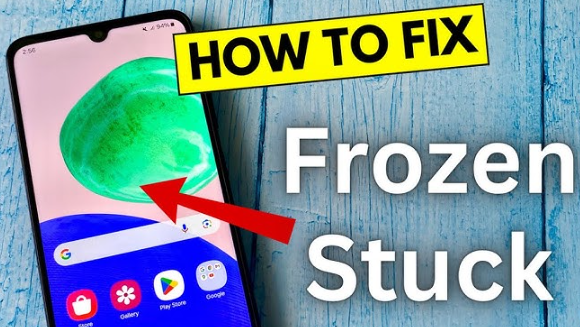
Troubleshooting Common Causes of a Hanging Samsung Phone
This section explores the most frequent reasons why your Samsung phone might freeze, providing step-by-step solutions. We’ll cover everything from simple restarts to more advanced techniques for resolving the issue. Understanding these causes is the first step toward a quick fix.
Restarting Your Phone
- A simple restart often resolves temporary glitches that cause your phone to hang. Hold down the power button for several seconds until the power options menu appears, then select “Restart”. This forces the phone to close all running applications and clear temporary files in the RAM, often resolving minor freezing issues. This is the most basic, yet effective, first step in troubleshooting most Samsung phone issues. It consumes little time and effort but yields significant results in many cases.
Clearing the Cache Partition
- Your phone’s cache stores temporary files used by apps. A clogged cache can lead to slow performance and freezing. Clearing it can significantly improve your phone’s speed and stability. To do this, boot into recovery mode (usually by pressing and holding the Volume Up, Home, and Power buttons simultaneously—the exact key combination may vary depending on your phone model) and select “wipe cache partition” from the menu. This process doesn’t delete any personal data.
Checking for Software Updates
- Outdated software can contain bugs that lead to freezing and other issues. Make sure your phone’s operating system and apps are up to date. Go to Settings > Software Update and check for any available updates. Installing these updates often includes bug fixes that directly address performance issues and improve the overall stability of the device. This is a preventative measure against future hanging issues.
Force Stopping Apps
- A misbehaving app might be the culprit. If your phone hangs consistently after launching a particular app, force stopping it can resolve the problem. Go to Settings > Apps and find the problematic app. Tap on it and select “Force Stop”. This closes the app completely, removing it from the active processes and freeing up system resources. If this resolves the issue, you may consider uninstalling and reinstalling the app or finding an alternative.
Advanced Solutions for Samsung Phone Hanging Issues
If the basic troubleshooting steps haven’t resolved the problem, this section explores more advanced techniques, including factory resets and potential hardware issues. These methods are more involved but may be necessary for persistent freezing.
Performing a Factory Reset
- A factory reset will erase all data on your phone and restore it to its original factory settings. This is a drastic measure but can fix persistent software problems. Before proceeding, back up all your important data. Go to Settings > General Management > Reset > Factory data reset. Be aware that this will completely wipe your device, so ensure you have a backup of your important data beforehand. This is a last resort option when all other attempts have failed.
Checking for Malware
- Malicious software can significantly impact your phone’s performance and cause it to freeze. Install a reputable antivirus app and run a scan. If malware is detected, follow the app’s instructions to remove it. This is important, especially if the hanging issues started after downloading a suspicious app or visiting an untrustworthy website. Regular security scans are recommended to prevent such occurrences.
Assessing Hardware Problems
- In some cases, the phone hanging issue might be caused by a hardware fault. Overheating, damaged components, or insufficient RAM can contribute to freezing. If none of the software-based solutions work, consider taking your phone to a qualified repair technician for diagnosis. Physical damage or internal component failure could be the underlying cause. Professional assistance may be required to identify and rectify such hardware-related problems.
Optimizing Your Samsung Phone for Smooth Performance
This section provides tips and best practices for preventing future phone hanging issues. By adopting these proactive strategies, you can significantly improve your Samsung phone’s overall performance and reliability. Maintaining a well-optimized device reduces the likelihood of encountering freezing.
Managing Apps and Memory
- Regularly uninstall apps you no longer use. This frees up storage space and improves performance. Also, close apps you’re not actively using. You can check your active apps in the recent apps menu (usually accessed by swiping up from the bottom of the screen). Excessive background processes consume RAM and can lead to slower performance and freezing.
Updating Apps Regularly
- Keep your apps updated to the latest versions. Developers release updates that often include performance improvements and bug fixes, contributing to a smoother user experience. Check for app updates regularly through the Google Play Store or the Galaxy Store. This is a simple preventative measure that avoids many common issues.
Avoiding Overheating
- Excessive heat can damage your phone’s components and lead to performance problems. Avoid using your phone in direct sunlight or while charging for extended periods. If your phone becomes too hot, let it cool down before using it again. High temperatures can negatively impact battery life and processor performance, leading to slower response times and potentially freezing issues. Proper ventilation is crucial.
Debunking Common Myths About Samsung Phone Freezing
Myth 1: All Samsung phones freeze frequently.
This is false. While freezing can occur, it’s not inherent to all Samsung phones. The frequency depends on usage, app quality, software versions, and hardware condition.
Myth 2: Factory resets always fix the problem.
This is also not always true. While a factory reset addresses software problems, it won’t solve underlying hardware malfunctions.
Myth 3: A slow phone means it’s time for a new phone.
Not necessarily. Often, performance problems can be resolved with software maintenance, optimization, and troubleshooting steps before purchasing a new device.
Understanding Samsung Phone Memory Management
This section dives into the technical aspects of Samsung’s memory management system. Understanding how your phone handles memory can help you diagnose and address performance issues more effectively. This includes RAM usage and storage management.
RAM Management
Random Access Memory (RAM) is the short-term memory of your phone, holding data currently in use. When RAM is full, the phone might slow down or freeze. Closing unnecessary apps helps free up RAM. Background processes often consume significant amounts of RAM, contributing to slower performance and potential freezing. A well-managed RAM can improve the overall user experience.
Internal Storage Management
Internal storage houses your apps, photos, and other data. If the storage is full, your phone might struggle, resulting in freezing or slowdowns. Delete unnecessary files, apps, and photos to reclaim space. You can use built-in storage management tools to identify large files and apps consuming considerable space. Optimizing internal storage is crucial for maintaining your device’s performance.
Case Studies and Real-Life Examples
Let’s look at a few real-life scenarios and their solutions:
- Scenario 1: A user’s phone froze after installing a new game. Solution: Force-stopping the game and clearing the cache partition resolved the issue. The game was likely poorly optimized or contained bugs causing memory overload.
- Scenario 2: A phone consistently froze when using a specific social media app. Solution: Uninstalling and reinstalling the app fixed the problem, suggesting corrupted app data was the cause.
- Scenario 3: A phone froze frequently and was running slowly, even after basic troubleshooting. Solution: A factory reset was performed, resolving the problem, suggesting underlying software bugs.
Insert a comparison chart here showing RAM usage before and after clearing the cache partition.
FAQ
How often should I restart my Samsung phone?
Restarting your phone at least once a week can help prevent performance issues and improve stability. This simple action can resolve many minor glitches and avoid more serious problems.
What should I do if my phone is still hanging after trying all these steps?
If the problem persists, consider taking your phone to a Samsung service center or a qualified repair technician for professional diagnosis and repair. A hardware issue might be the underlying cause.
Can I lose my data if I perform a factory reset?
Yes, a factory reset erases all data on your phone. Always back up your important data before performing a factory reset to avoid permanent data loss. Consider using cloud storage services or connecting to a computer for regular backups.
Why is my phone overheating and causing it to hang?
Overheating can be due to intensive app usage, extended charging, or exposure to direct sunlight. Allow your phone to cool down and avoid strenuous use in hot environments.
How can I check my phone’s RAM usage?
You can monitor your phone’s RAM usage through built-in tools (often found within the device settings under “Battery” or “Maintenance”). Many third-party apps can also monitor and manage RAM usage more comprehensively.
My phone freezes when I try to take a photo. What could be wrong?
This may indicate an issue with the camera app or its associated hardware. Try clearing the camera app cache, or reinstalling the app. If the problem persists, it might be a hardware fault requiring professional repair.
Final Thoughts
Addressing a Samsung phone hanging issue effectively requires a systematic approach, starting with basic troubleshooting and progressing to more advanced solutions as needed. Remember that preventing future issues is just as important as fixing current ones. By regularly updating your software and apps, managing your memory effectively, and avoiding extreme temperatures, you can greatly improve your phone’s longevity and overall performance. If you follow the steps outlined above, you should be able to resolve most hanging issues and enjoy a more responsive Samsung device.